IOS 11 is the next operating system of the iPhone iPad and iPod Touch, it includes numerous new features for all devices, but perhaps the most benefited by the new release is the iPad with a multitude of improvements oriented to productivity.
New iOS 11
IOS 11 was introduced on June 5, 2017 at the WWDC (Worldwide Developer Conference) and introduces numerous new features for all devices compatible with the new version of the operating system of the iPhone and iPad.
IOS 11 does not bring major design changes in general, however if there are sections where the appearance change is very deep, such as the new control center or the completely redesigned App Store. Otherwise, small changes in system animations, or some new icons, complete the iOS 11 design changes section.
The control center , in addition to receiving a new design in which multiple screens are eliminated, is now fully configurable, the shortcuts that we can put in it have been expanded and also the functionalities that we can access when doing 3D Touch in The icons of the same.
Siri has also received improvements , but most of them are currently available only to users who use English as the default language. Siri will be able to translate English into different languages, however you will not be able to do it in reverse for the time being. Siri also acquires a more natural voice, again only in the English version at the moment.
The notification center disappeared, as we knew it, in iOS 11. Now when you slide your finger down the screen you go directly to the lock screen where the latest notifications are displayed. Continuing with the notifications, the lock screen will continue to show the same as before, but if you want to access the above you will now have to slide your finger from bottom to top, exactly the reverse of iOS 10.
The iPad has received a lot of improvements in iOS 11 , improvements that make this perhaps the biggest update for the Apple tablet in history. Now, for example, the iPad Dock is accessible from any application simply by sliding the finger up, which greatly facilitates access to the most used applications and works in tune with the real iPad multitasking.
The iPad multitask wins a whole lot with the new "Drag and Drop" option that lets you select different files, such as photos, documents or videos, and move them from one application to another by simply sliding your finger to the part of the screen where the Destination application.
The Apple Pencil also receives enhancements, is more responsive and faster and takes advantage of new features such as the ability to include notes written in emails or instant access to the Notes App just by bringing it closer to the iPad screen, even if it is locked.
We also have new keyboard functions; In the iPad we can enter numbers and special characters simply by sliding the finger down on the corresponding key. In the iPhone we have a new keyboard option with a hand that resizes the same to be able to access all the keys if we are holding the iPhone with one hand.
Another new feature of iOS 11 for both iPad and iPhone is the new App Archives. From this application we will be able to access all our files stored in iCloud, but also be able to integrate with third party applications like Dropbox or Google Drive. This way we can have everything in one place and access it anywhere.
Apple's native apps also bring interesting new features. Now, the Notes App is able to recognize the text we write by hand and will deliver results when we enter a search in the finder of the iPhone or iPad. Now we can also scan documents directly from this application. The Map App is able to display interior maps of large shopping centers, airports or emblematic buildings. The photo section of the iphone has also been enhanced with a smarter Memories section than ever, the portrait mode of the iPhone 7 Plus now lets you take photos with the flash enabled and with HDR and the Live Photos gain new and interesting filters, such as Long exposure.
The Message App gets a new location and easier access to the applications installed on it. In addition we will be able to make micro payments between people from it thanks to the new feature of Apple Pay. All data and files sent by iMessage are now stored in iCloud, which means that the space occupied by this application in our device is much smaller and all our devices are perfectly synchronized.
IOS 11 incorporates AirPlay 2 , a new protocol that will allow to control several units of the same device that, for example, are located in different rooms of a house. This new feature is leveraged by HomeKit, which is now also compatible with speakers.
At the moment iOS 11 is only available to developers, but Apple has already announced that it will launch a public beta, for anyone who wants to try, at the end of June. The final version of iOS 11 will be available to everyone in September 2017.
Current version: iOS 11 Beta 6
So far Apple has released 6 betas for developers and 4 betas for public users.
With every beta Apple improves and corrects iOS 11 to arrive at the time of launch with a version as stable as possible and can be by anyone.
If you want, you can install iOS 11 Beta without being a developer , touch the link above to see our complete tutorial step by step.
If you want to see what has been included in the successive iOS 11 betas you can do it by touching our dedicated articles, we leave the links just below:
- New iOS 11 Beta 2
- New iOS 11 Beta 3
- New iOS 11 Beta 4
- New iOS 11 Beta 5
- New iOS 11 Beta 6
How does the latest iOS 11 Beta work?
If you are thinking of installing the public beta of iOS 11 check out our opinions and advice. We have installed iOS 11 since the first beta and we have done it on our main iPhone, so we can give you an idea of what you will find if you decide to take the step.
The beta 6 of iOS 11 solves many problems that were dragging from the previous beta, the operating system is much more stable and improves battery life. IOS 11 Beta 6 This is already one of the final versions of the official release and, although it still contains errors, it is a stable enough version for anyone to install.
IOS 11 Beta 6:
- Battery expenditure: Acceptable.
- Restart and crash: iOS 11 Beta 6 has greatly improved the stability and have drastically reduced the restarts and crashes after installing in our teams.
- Application performance: A high percentage of applications work without the need for the developer to update it for iOS 11. You can use the most important applications (Facebook, Twitter, Instagram ...)
- Do we recommend installing it on a main computer ?: iOS 11 Beta 6 is stable enough to be used on a main computer, but still fails. It is not even the final version, however you can install it without fear and use your iPhone normally.
Design Changes
Many things change in iOS 11, in many cases the change is subtle, in others it is a radical change, from new icons to the complete redesign of the App Store and control center, through changes in animations and hundreds of more details.
These are the most notable changes in what design is concerned:
- The coverage of the mobile is no longer displayed with dots, they return the bars of a lifetime.
- New icons for App Store, iTunes Store, calculator, maps.
- Complete redesign of the App Store.
- New look for the calculator.
- Complete redesign of the Control Center.
- New look of the Podcast App.
- New animations when opening and closing Apps.
- New design showing available and busy storage.
- Dock applications no longer display the name, only the icon appears.
- New effects in the application of messages.
- New one-hand keyboard.
- New Animated Wallpapers.
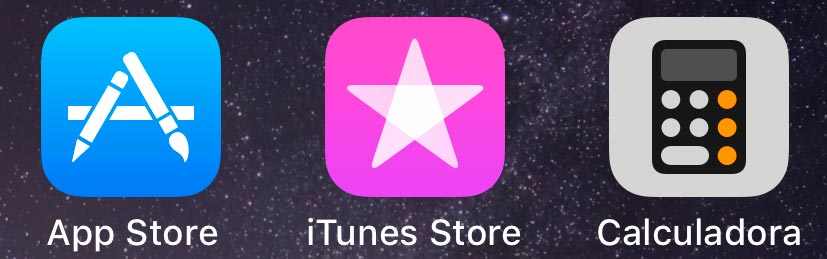
New iOS 11 icons
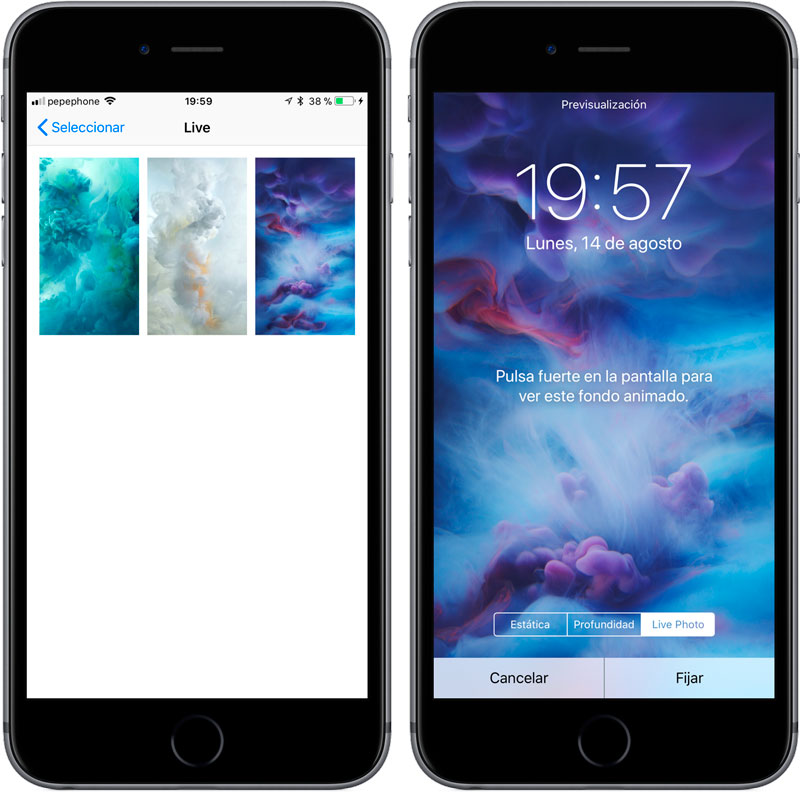
New Animated Backgrounds on iOS 11

New designs: App Store, Control Center and Podcast App

New effects in the Messaging App
Redesigned App Store
The App Store has undergone a complete redesign in iOS 11, everything is new and has a really attractive look.
The main page of the App Store in iOS 11 no longer shows a lot of applications or the highlight of each section, now it is called "Today" and is dedicated to show us the applications and games more outstanding of the day in course, besides proposing us Tricks for the most popular applications of the App Store or App collections of concrete moments of the day.
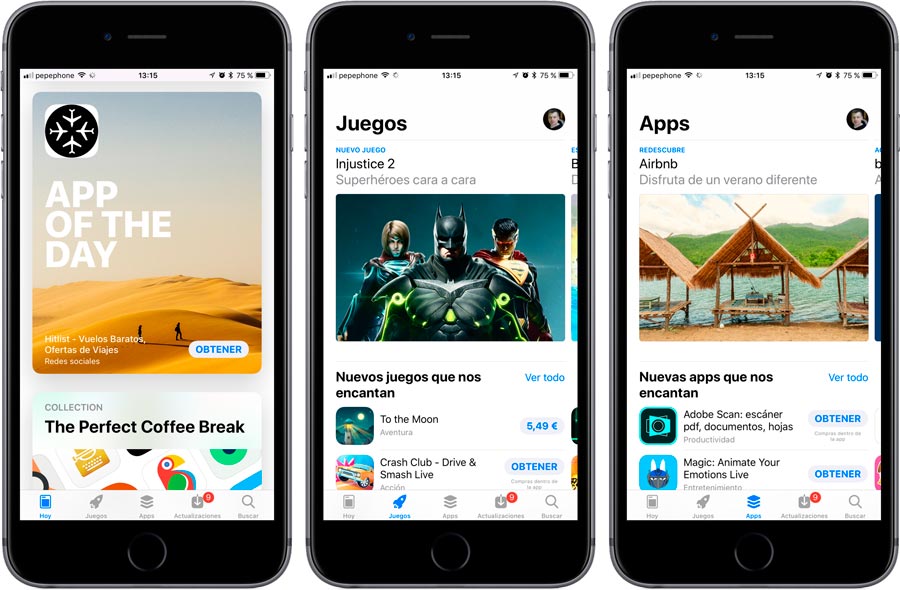
We can also go to the Games and Apps tab, access the charts and updates section. Everything is shown radically different from iOS 10, more spectacular, with larger photos and videos that are launched automatically, and more intuitive.
New features for iOS 11
IOS 11 comes loaded with new features for our devices; A completely redesigned control center to which we can add a lot of new functions, new filters to apply to Live photos, new SIRI skills, new intelligent functions for the keyboard or a new App Store, are many news that we detail below .
Lock screen
There are only minor aesthetic changes in the lock screen, especially you will notice the changes on the keyboard to enter the unlock key.

However the most striking change is the way to access the notification center, in iOS 11 we have to slide the finger from the bottom up, just the reverse of what we have been doing so far. When you do this, you'll see a new section called "Today, Before"opens, which displays archived notifications.
At first the gesture seems a bit strange, but personally I find it quite more comfortable than usual.
As in iOS 10, to access the camera simply slide your finger to the left, if you slide it to the right you will enter the page of the widgets.
Configurable Control Center
Finally apple allows us to configure and choose the shortcuts we want to have in the control center of the iPhone or iPad.
The design of the Control Center has completely changed and, although at first glance may seem a bit strange, it has gained a lot in functionality.
Now, the control center happens to have a single screen, we will no longer have to slide your finger to access the control of the music or devices with HomeKit, we will have all the shortcuts on a single screen.
In total, we can add up to 17 accesses, in addition to those that can not be played or changed (Toogles for connectivity, music, screen rotation, Do Not Disturb mode, Airplay, flashlight and volume).
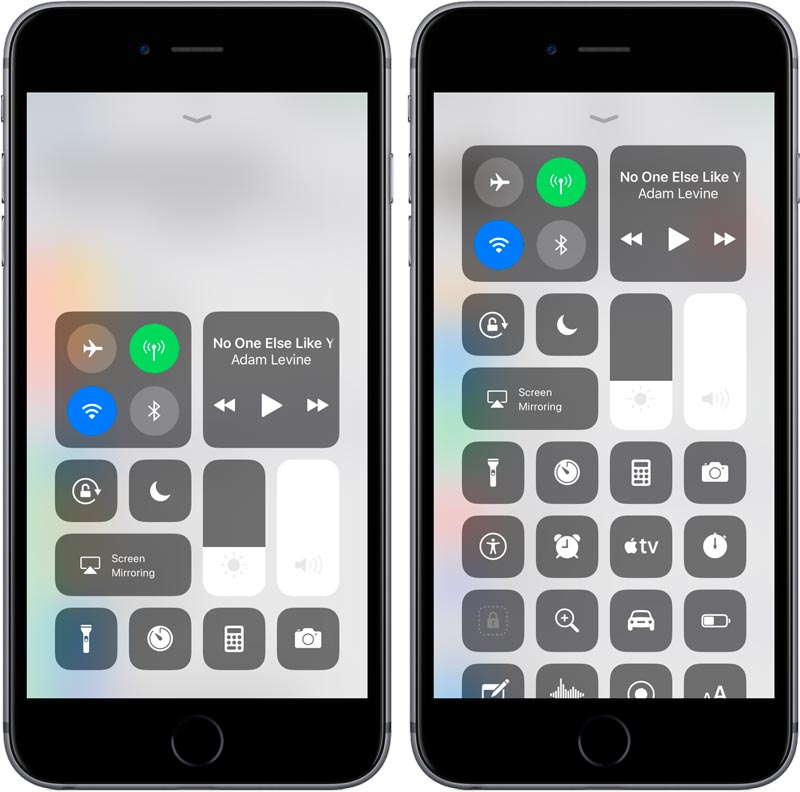
Control Center in iOS 11 with much more functionality
In addition, many of these shortcuts work seamlessly with 3D Touch. For example, if we press the access to Notes or the camerawe will see different options to open the App at the point that we want. Another great example of functionality is the direct access to App Remote , by doing 3D Touch on the icon opens a virtual command that allows us to handle our Apple TV without having to open the application.
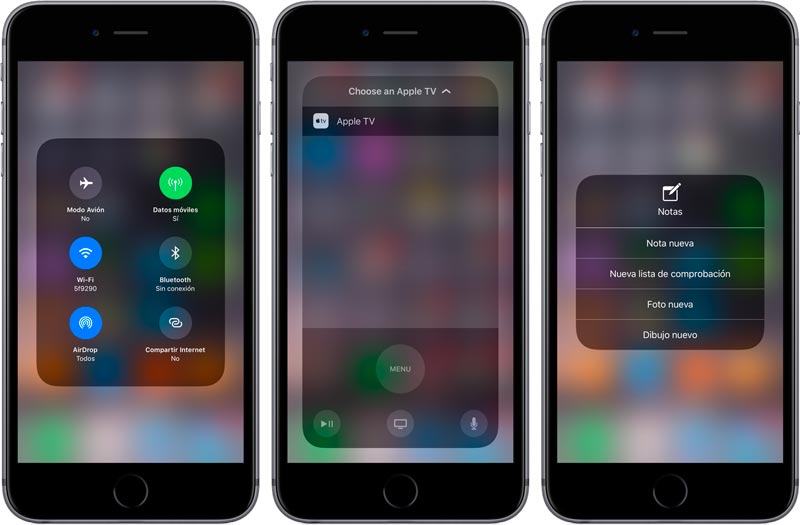
As 3D Touch opens new options
In short, a new design that you may or may not like, but to which there is little to be neglected as far as functionality is concerned.
New option to record screen
Now we can record the screen of our iPhone or iPad directly from our device. The option is accessible from the control center, although it is one of the shortcuts that is not included in the initial configuration, you will have to add it yourself from the settings of the control center.

By doing 3D Touch we can choose whether to activate the iPhone microphone or not.
Uninstall apps you do not use automatically
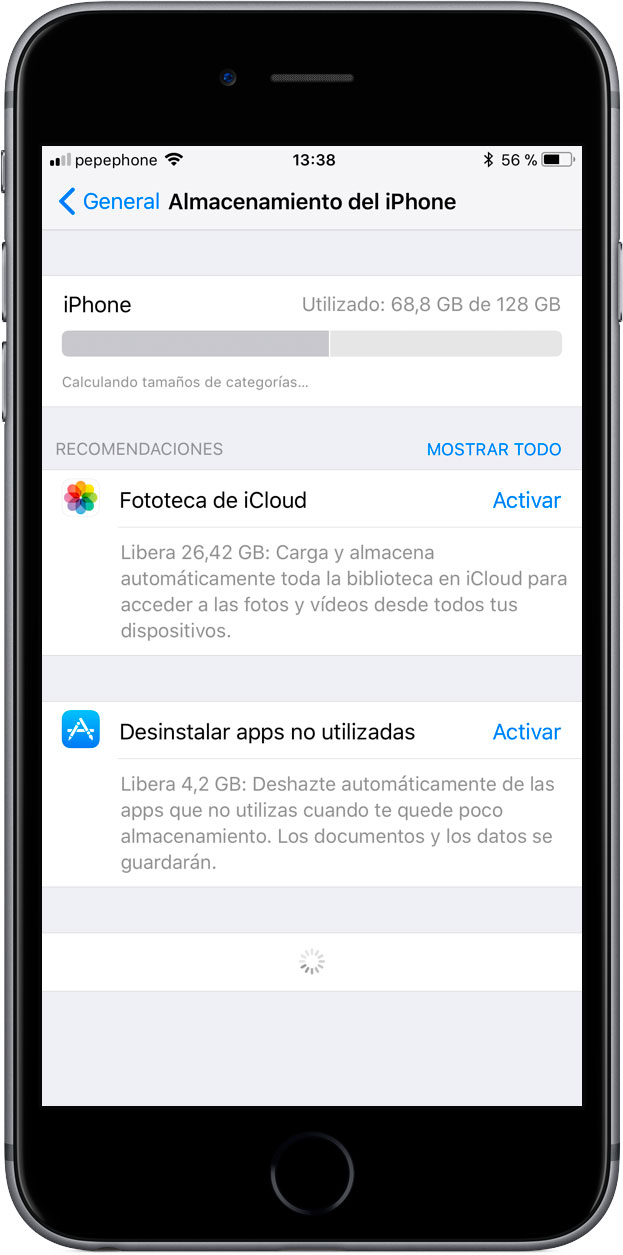
Interesting new feature for those who are scarce storage space, if the iPhone detects that you are running out of space automatically erases the applications you use the least. That yes, save all documents and data associated with that application so you have them there in case you reinstall deleted applications.

This new option is available from the Settings / General / Storage path of the iPhone.
QR code reader on camera
The camera app becomes smarter and is now able to detect QR codes and perform actions with them.
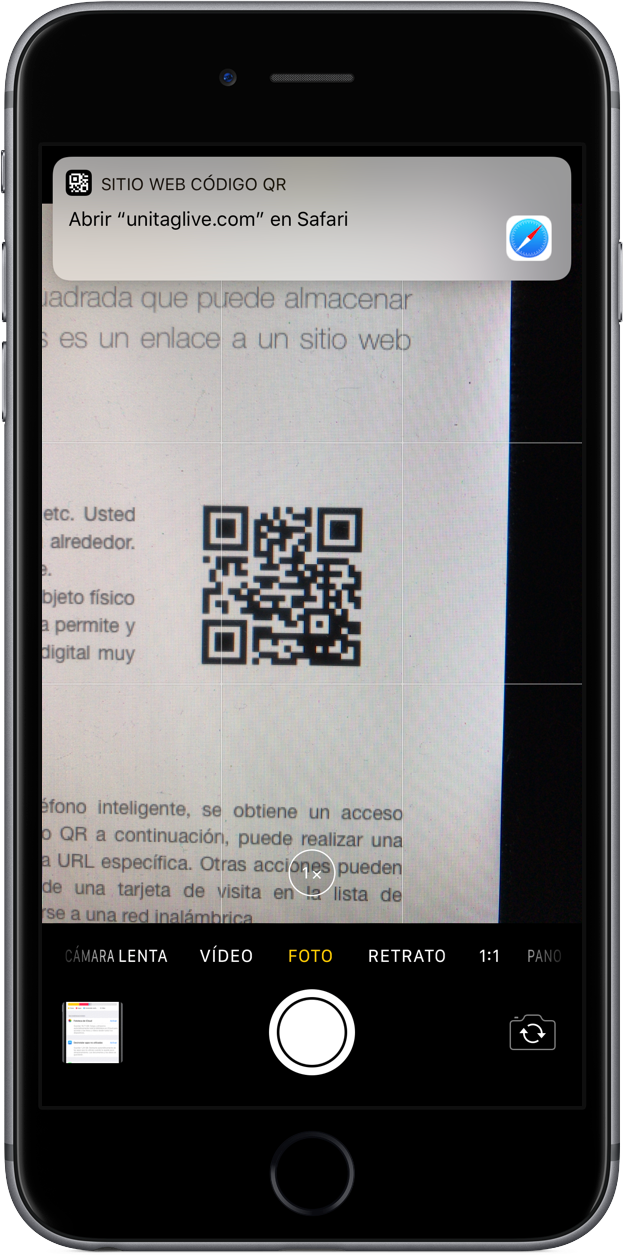
If you see a QR code just open the Photo App and point to it so that, immediately, you get a notification to perform the action for which it is scheduled.
Screenshots
IOS 11 brings the screenshots to another level, now when you take one, you will see as it remains a thumbnail of it in the lower left of the screen. If you touch on it will open an edit in which you can mark, draw, write or even add your signature. Once you do what you think is convenient you can share it directly by the medium you want, all this without going through the reel.
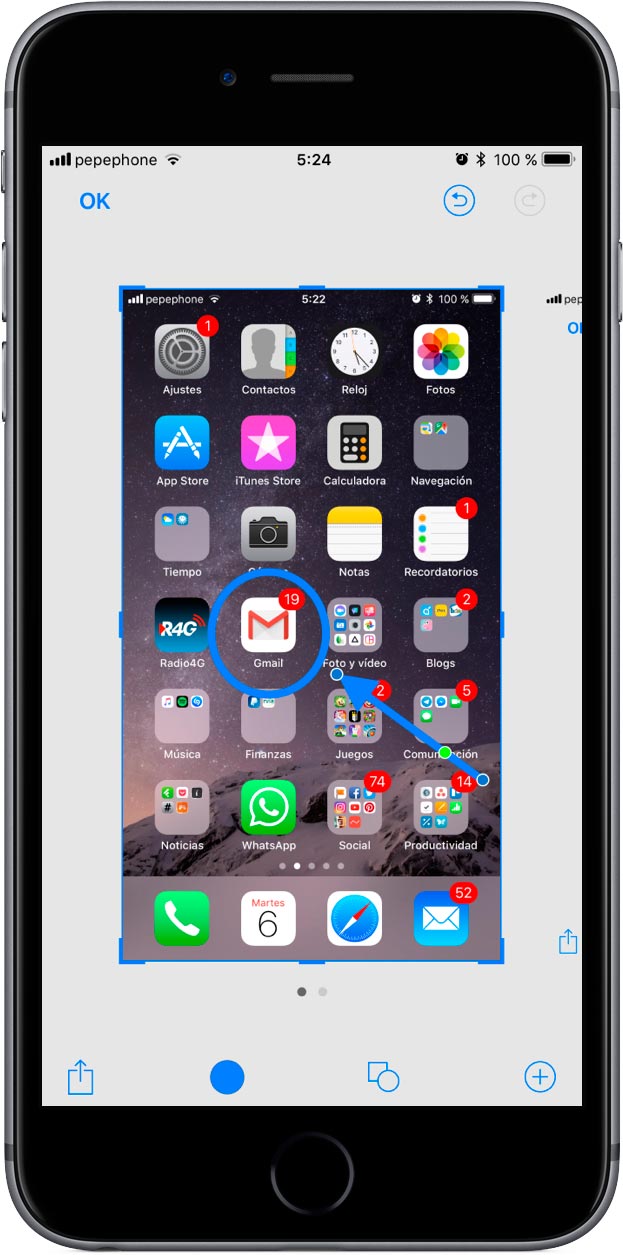
If you just want to save the unedited capture on the reel, you just have to swipe left over the thumbnail or wait for it to disappear after a few seconds.
The new screenshots are available on both iPhone and iPad. In the iPad Pro, in addition, you can use the Apple Pencil to mark, write or sign your captures.
Emergency SOS
This is a function that we already had in some betas of iOS 10.2, but finally Apple did not get it to implement in the final version.
With the function activated you will only need to press the iPhone on / off button 5 times in a row to make an automatic call to emergencies. A very useful feature if you are in a hurry.
Emergency SOS is activated by default, in fact it is a function that can not be removed, pressing 5 times the on / off button will launch the screen that displays the option to call emergency directly or access your medical data.
You can configure in the iPhone settings that by pressing 5 times the on / off button the iPhone calls directly to emergencies and sends a message saying that you have done it to certain contacts that you yourself can select previously.
In any case, when using this function, whatever the option you choose, the Touch ID will be automatically blocked and the only way to access the iPhone will be by the security code number, so it is also a good option for Prevent someone from forcing us to unlock the iPhone with our fingerprint.
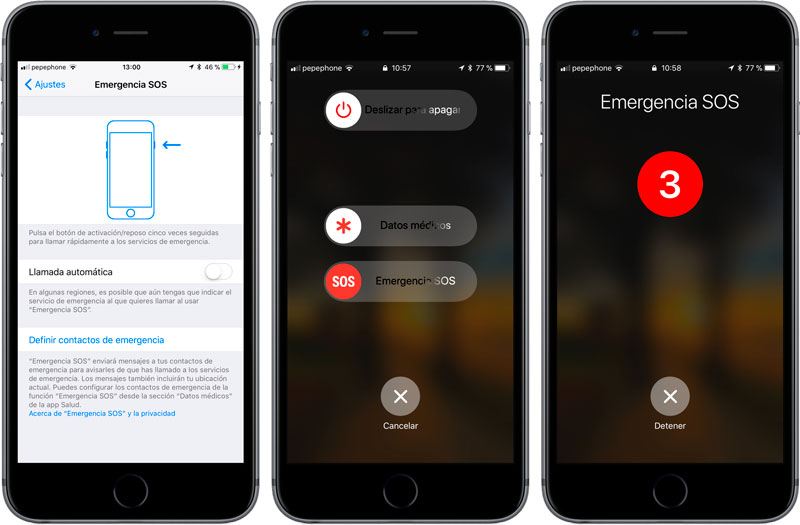
The emergency call takes a few seconds to launch, so in the unlikely event that you press the power button accidentally 5 times, you will have time to stop it. We hope this time, Apple will launch this feature in the final version of iOS 11.
New App Archives
Finally a native file manager for iOS devices. With the new app you will have access to all your local files of your iPhone or iPad, but also all your files in the cloud, both Apple itself and other services like Dropbox, OneDrive, Google Drive, Box and others.
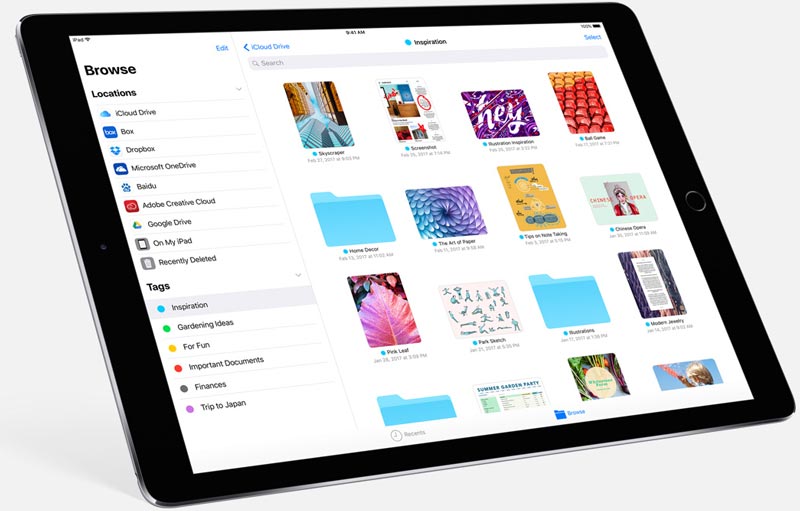
From this app you can manage and sort your files in folders or assign them tags to find them quickly. The Archives App is available on both iPhone and iPad.
ARKit
Augmented reality comes to the iPhone natively. Developers will be able to access the API of this resource to create augmented reality applications.
ARKit can be used in both Apps and games and promises to be very interesting, but we will have to wait to see that offers us the imagination of the developers to be able to value in depth.
Be that as it may, ARKit seems like an API thought for the iPhone 8 in particular, since all the rumors indicate that the augmented reality will have a very important weight in the next Apple smartphone.
Camera and photos
IOS 11 also brings us news in our photos.
LIVE PHOTOS
On the one hand, Live Photos gain new exclusive filters:
- Loops: Live Photos become 3-second videos that repeat over and over again.
- Rebound: This effect makes the Live Photo go forward and backward.
- Long exposure : Get a reflex camera effect with your iPhone, ideal for watery landscapes or moving scenes.
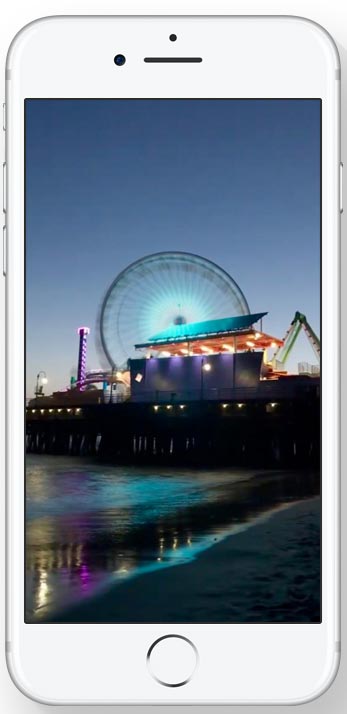
To access these effects you only have to go to the reel, select a Live Photo and slide your finger up to be able to select them.
On the other hand, also with the Live photos activated, now you will be able to choose which capture you want to be highlighted, so not only will you be able to avoid blurry photos, you can also select the frame in which all the protagonists in your photo come out With his best face.
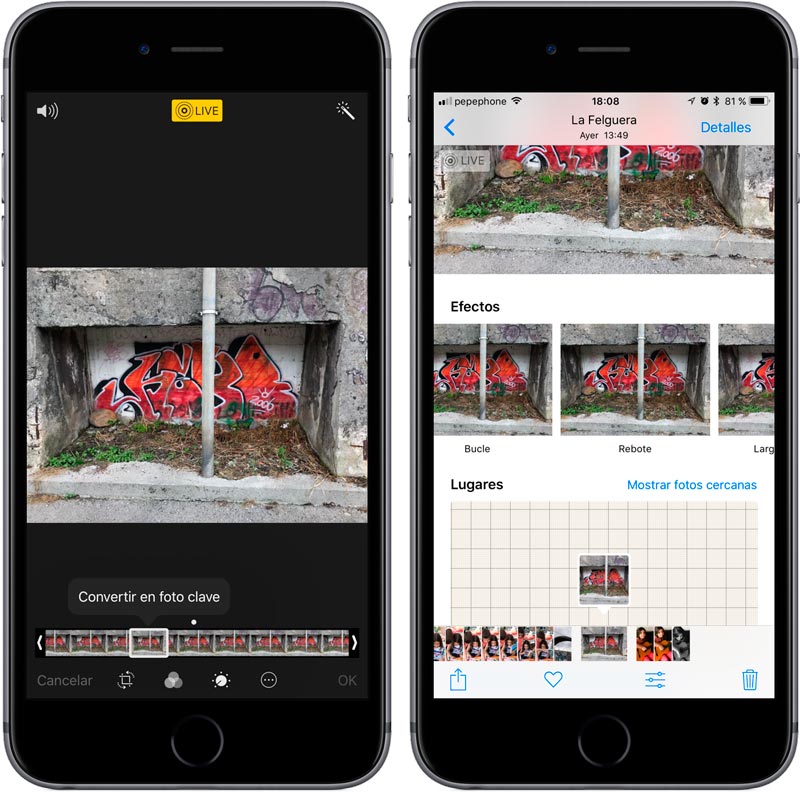
There are also new filters for normal photos, accessible from the Photo App editor.
THE HALF OF SPACE WITH THE SAME QUALITY
On iOS 11 your entire multimedia library will be half the size of iOS 10. Apple has implemented two new types of compression algorithms:
- HEVC or h.265: Improved video compression up to 2x.
- HEIF (High Efficiency Image Format): Get photos with half weight.
Both technologies are able to reduce up to half the size of your photos or videos without loss of quality . Photos and videos not only reduce the size in half on your devices, they also do it in iCloud, so you'll take up less space in your cloud storage plan.Both formats are new, but compatible with all devices, whether Apple or not, so you can continue sending photos and videos to your friends, have the phone they have.
PORTRAIT MODE (IPHONE 7 PLUS AND NEW DEVICES)
The portrait mode of the iPhone 7 Plus, and the devices that launch Apple in 2017 compatible with this camera mode, also incorporate important news:
- Higher quality in low-light photos: The weak point of the portrait mode of the iPhone 7 Plus is the low light. When using the second lens, with less brightness than the main lens, portrait mode photos drop many integers when there is not enough light. With iOS 11 the quality of portraits in low light is improved and they will come out with less grain.
- Flash and HDR in portraits: Until now it was not possible to use Flash or HDR in portraits of the iPhone 7 Plus, with iOS 11 it is possible to activate them, although that yes, you will not be able to activate both at the same time. The results of the photos activating some of them when it is necessary increases many integers.
- Optical Image Stabilization in portraits: Portrait mode is now also compatible with optical image stabilization.
- Editing portrait mode: With iOS 11 you can remove and put portrait mode after taking the picture, just do it in the editing screen of a portrait and touch the button at the top of the screen.

All these improvements will make your portraits look better than ever.
IMPROVED FACIAL RECOGNITION
With iOS 11 we will have all facial recognition data fully synchronized between devices. So far, the people section of each device was independent; Although we had our photos synced on the iPad, iPhone and Mac, each device had to do the facial recognition work separately and we had to organize and put the people that interested us in the corresponding folder. With iOS 11, and the new MacOS High Sierra, this data will also be synchronized and will be common to all our devices.
MORE AND BETTER MEMORIES
Memories are mounts of photos and videos that the Photo App automatically makes of what you understand to be special events.
With IOS 11 we will see more types of memories, for example some exclusive of pets, of our children in different ages etc.
Now, in addition, you can edit the memories to be displayed horizontally or vertically on our iPhone.
SPHERES FOR APPLE WATCH
With iOS 11 and WatchOS 4 we can create spheres for Apple Watch very quickly and easily. From the Photo App, giving the button to share in a photo, a new option appears to create a sphere for the Apple Watch.

What's new in Siri
Siri is improving year by year, with every iOS that launches and iOS 11 is no exception and incorporates very interesting news.
Siri is more natural now, the idea is that the experience when talking with the virtual assistant of the iPhone is increasingly close to that of talking to a human being. Siri will learn from all users to incorporate better pronunciation and a more expressive voice.
Siri integrates even more into our devices with iOS 11 and will be able to anticipate our needs. For example, it will be able to suggest new entries for our calendar depending on what we are doing on our device or anticipate what we are going to write in a message and give us the option to auto complete the text more efficiently than before.

With Siri in iOS 11 we can also translate into several languages. For example, you can say "How do you say in English thank you very much?" Siri would respond with the appropriate text in the language that you requested and even give you the option to play the audio with the exact pronunciation.
Siri is able to translate English into Chinese, French, German, Italian and Spanish. In the coming months Apple will expand the languages Siri can translate.
Siri's translation option is still in beta and, for the moment, only works if you have US English configured as the primary language for your device.

On the other hand, Siri will also learn from our musical tastes, if you use Apple Music will be able to offer you suggestions of songs that you know you like, or even songs that you have never heard but that the wizard thinks you may like. You can also ask for information about any group or singer. As we discussed, these new music-related functions will work much better if you are an Apple Music subscriber.
Also important is the announcement of opening the Siri API to more types of applications. With iOS 10 Apple allowed Messaging, Banking Apps developers or those using the photo search to integrate Siri into them. With iOS 11, the number of applications that can make use of Siri is now expanded, and bill payment, task management and QR management applications can now also be used.
Do not disturb while driving
The do not disturb iPhone mode has expanded and now you can also choose to only apply when driving and driving. The new "Do Not Disturb When Driving" mode is not limited to not sending you notifications or calls, it is also capable of responding with an automatic, configurable message to the person trying to contact you so that they know that you will attend to their Try to get in touch with you when you reach your destination.
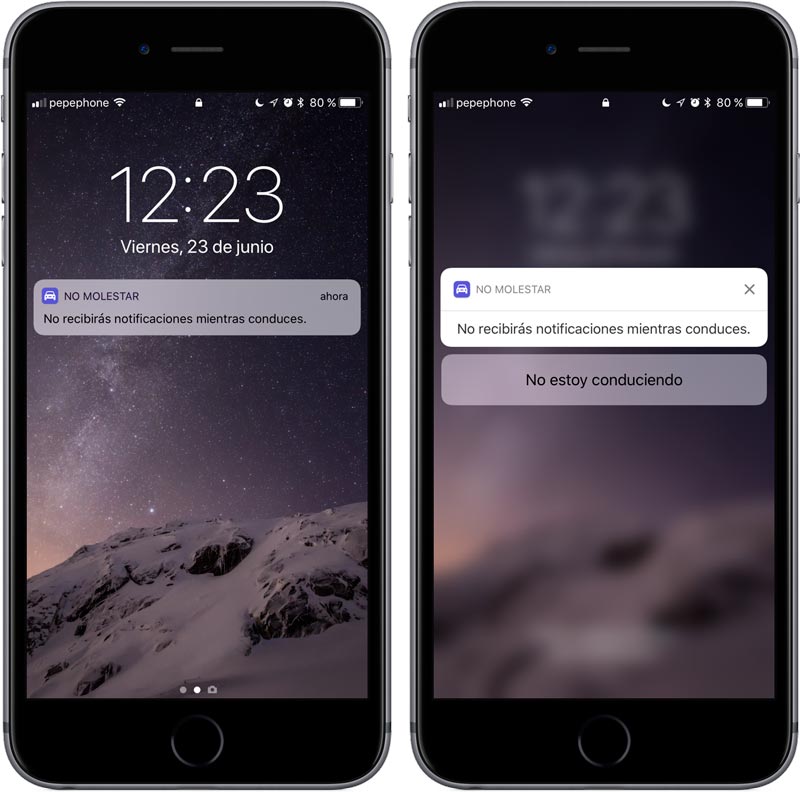
You can activate the do not disturb mode when driving manually or set it to turn on automatically, when connecting to the Bluetooth of the car or just when the iPhone detects that you are driving. If you choose this last option and you just go for a passenger in a car, you can deactivate this option from the notification that you will see on your iPhone when it is activated.
Automatic configuration of new devices
With iOS 11 configuring new devices is easier than ever. If you have, for example, an iPhone with iOS 11 and you buy an iPad with the same operating system, it will be enough that you put your iPhone next to the new device so that the first device detects the iPad in configuration mode. Then it will suffice that you note with the camera of your iPhone to the figure that will be on the device you want to configure to pass all your settings to the new device.
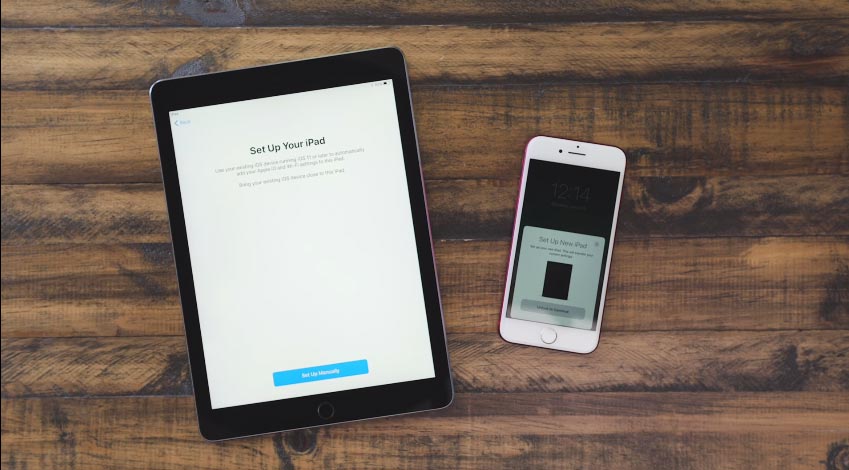
When you finish setting up the new device you will have WIFI passwords, personal settings and even iCloud passwords ready to use from minute one on your new device.
Single-handed keyboard
Now it is easier to reach all the keys if you want to write with one hand on the iPhone, the keyboard in iOS 11 has a new mode called "Keyboard with one hand" that shrinks the dimensions of the keyboard to allow you to reach any key.

To access the single-handed keyboard in iOS 11, you only have to hold down the world ball that you will see in the lower part of the keyboard and choose what orientation you want for this feature, depending on whether you are writing with the right or left hand.
IOS 11 for iPad
As we said at the beginning, one of the devices most favored with iOS 11 is the iPad, this new version of the operating system includes numerous improvements for him.
New Smart Dock
The new iPad Dock is able to remember the Apps you work the most, whether on the iPad, iPhone or Mac and shows them on the right side so you can access them quickly.
Now you can access the Dock from any application, you just have to slide your finger up to make it appear.
Enhanced multitasking
If you are inside an App and need to open another only you have to make the Dock appear and drag to the center of the screen the icon of the app of your choice, both will be open and fully functional.
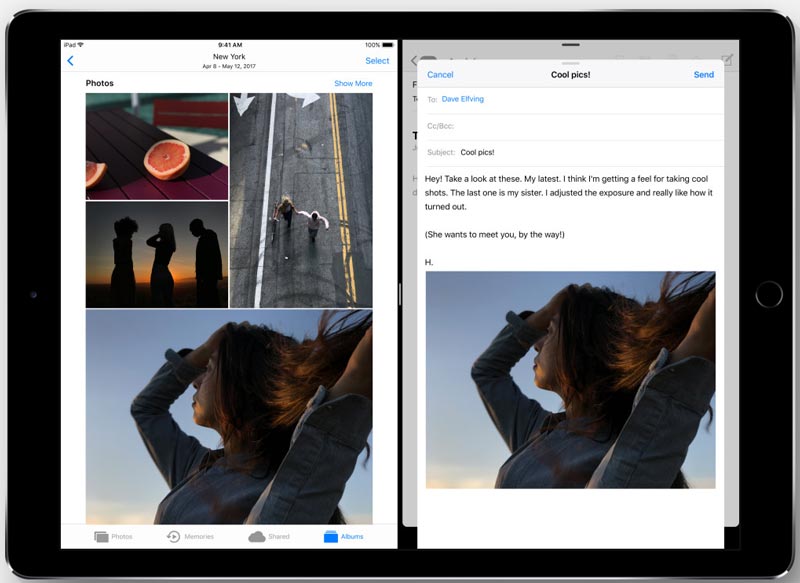
On the other hand you can interact with both passing files from one to another simply by dragging them. For example, you can drag a photo from your reel to an email you are writing, or copy any text from one application and paste it into the other, all on the same screen.
Select Open App (App Switcher)
With the new smart iOS 11 Dock switching app has never been so easy and fast on an iPad. However, when you want to access previously opened applications by double clicking the Home button you will be pleasantly surprised, as Apple has also redesigned this section giving even more functionality.
Now when launching the multitasking to select one of the open applications you will see something similar to the Mission Control of a Mac. In the right part of the screen will be the new control center with all the options that you have activated, in the lower part you have the Dock with your favorite apps and on the top left the applications you've opened on your iPad.
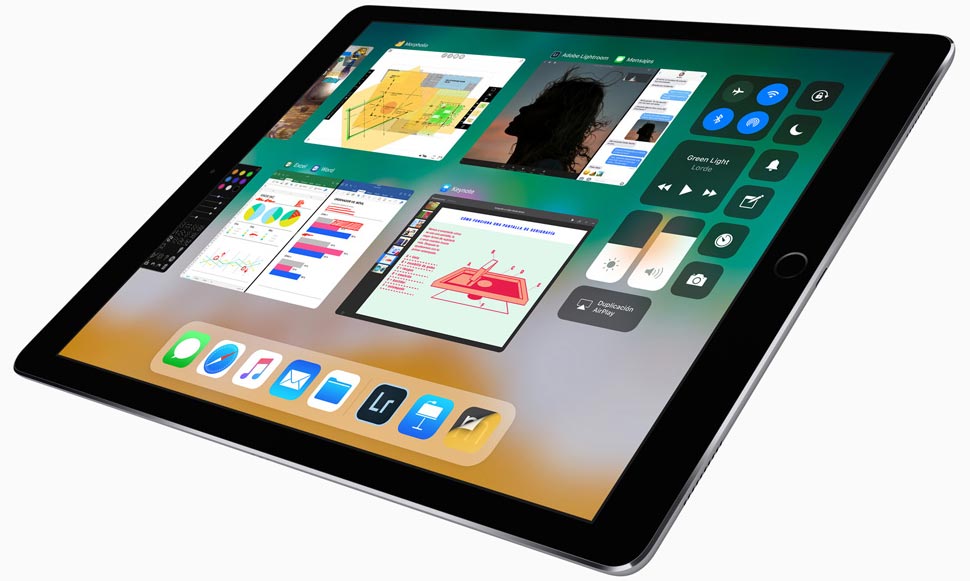
Something to keep in mind, when launching the open application selector does not close any open ones in the multitasking, ie if you are working with two applications at a time when selecting one from the App Switcher you can add it to applications already Open and work with three.
Keyboard enhancements
Entering numbers or special characters is now much faster on the iPad. In order to do this, we had to press the key below the uppercase, now with the new Quicktype keyboard is not necessary, just slide the corresponding key down to access these special characters or numbers.
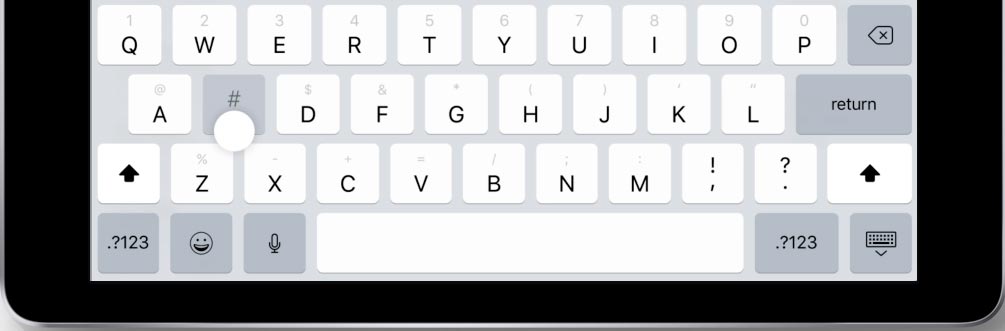
Undoubtedly a feature that will greatly help the speed and comfort when entering text on the iPad.
Improvements in Apple Pencil
The Apple Pencil has also received its ration of improvements in iOS 11:
- Immediate annotations: If you want to annotate something in a PDF or a screenshot just touch the screen with the Apple Pencil and start typing, the system detects it and allows you to do it automatically.
- Instant Notes: Even with the iPad idle, you can tap the lock screen with the Apple Pencil and type, whatever you type will be saved automatically in the Notes App.
- Smart drawing in notes: If you want to draw something in your notes, but you have already entered text, iOS 11 will move it so you have room for your drawing.
Hidden iOS 11 Features
We have already done a review of the main features of iOS 11, however the novelties do not stay there and within the new operating system there are lots of small hidden news, are less spectacular but not less important things.
These are the main hidden features of iOS 11, sure to find many of them useful.
- Automatic removal of unused applications: Following the Settings / General / Storage of iPhone route We arrive at a screen where we will see the Uninstall unused apps option . If this option is enabled the iPhone will automatically delete applications that you have not used for a long time. If you later decide to reinstall them you will have everything exactly the same as before removing it, since this option erases the applications, but not their data.
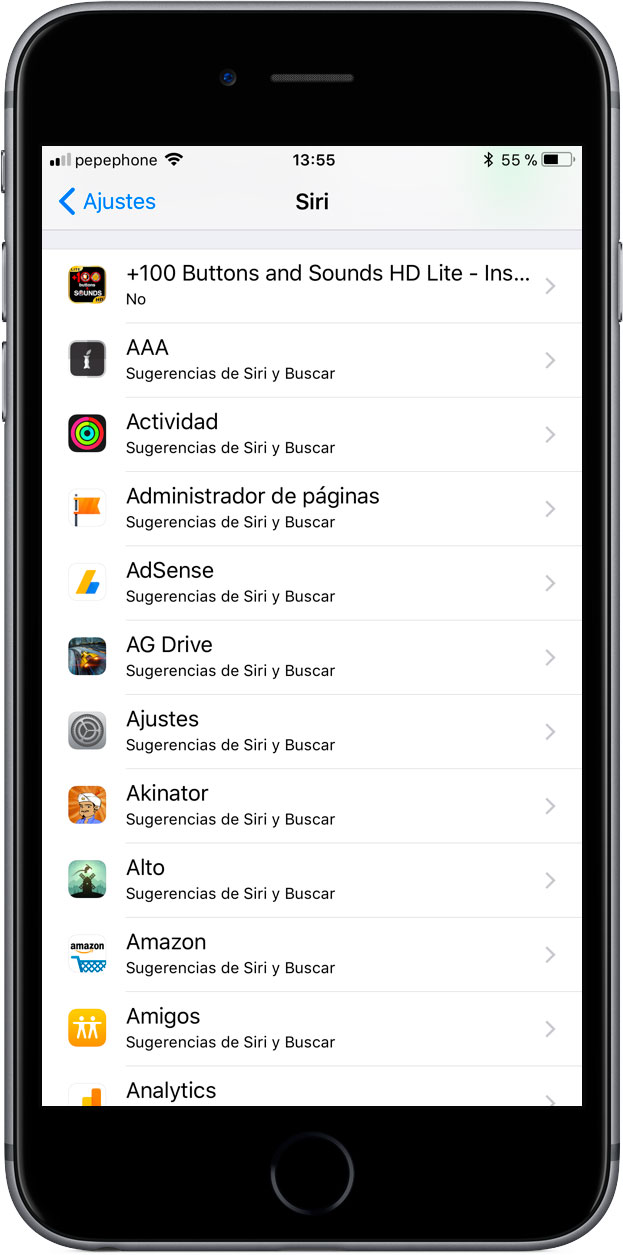
- New Siri configuration options: You can now choose which applications have access to Siri. You may not want certain applications to appear in Siri's suggestions, for example. If you go into Settings / Siri and scroll down you will see the list of all the applications that you have installed on your iPhone and you can give and remove access to the wizard of your iPhone to each one of them.
- More options to save storage space on your iPhone: In addition to the delete apps that you no longer use automatically, the iPhone storage section now offers many other options to keep your iPhone's storage space at bay. For starters we can check in a very visual way what more space is occupying on your iPhone with the new category color chart. We can also activate automatic options to free up space, such as removing old messages from iMessage or we can review our section of personal videos to remove those we no longer want. All from the same screen and comfortably.

- Your iCloud keychain passwords are more accessible: In order to access your saved passwords, you had to enter the Safari configuration, with iOS 11 this is no longer necessary, since this adjustment acquires an exclusive section in the first screen of the settings Of the iPhone. To access this setting you must authenticate with the Touch ID or the password that you have previously defined.iMyFone D-Back iPhone Data Recovery Get Back Lost Files on iPhone:https://www.imyfone.com/iphone-data-recovery/
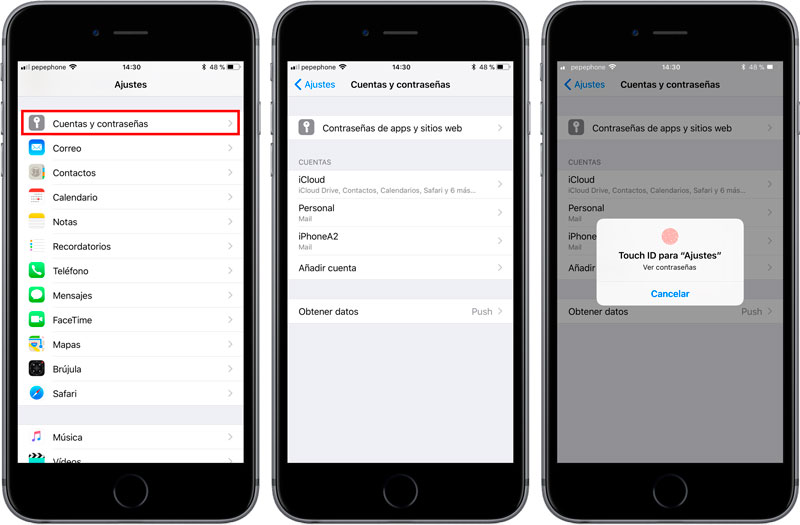
- Access to passwords in third-party Apps: Now, in addition to Safari, we can access the keychain iCloud and our passwords from third-party applications, something really useful when you download an application in which you have to use a password previously stored in the keychain .
- More configuration settings for Airpods: You can now define what each of your AirPods will do when you double Tap on them. For example, you can summon Siri by double tapping on the right AirPod and advancing the song you are listening to doing the same on the left.
- New volume control when playing video: It sure bothered to see the window that came out when you raised or lowered the volume when you watched a video, it was planted in the middle of the screen interrupting the viewing. With iOS 11 this will not happen again, since it includes a new, much more discreet volume controller that is located at the top right of the screen.

- New intelligent option for inverting colors ("Dark Mode"): This new option, which you can access from Settings / General / Accessibility / Display Settings / Invert Colors, activates color inversion throughout the system except for images and The multimedia content. Many have called this new feature "dark mode", although it is not really intended for that, as you can see in the video below.


Nice Good Work
回复删除gihosoft tubeget activation key
Applications for Windows, Mac, Linux and Smartphones, Games and Drivers
回复删除Applications
Do you have any of these signs of Error 52:
回复删除Your computer freezes or locks up at random.
Your computer crashes when you are running Windows Operating System.
If cc2BadFileNameOrNumber pops up and causes a program to shutdown or your computer to crash.
Your computer is running slow or taking a long time to boot up
For newbies and experts alike, a reliable registry cleanup software is key to ensure that you can resolve computer issues like Error 52 seamlessly. Through this software, it can save you time and effort including the possible hassle of having to purchase a new computer.
More details about it here: https://www.registry-clean-up.net/knowledge-base/errors/runtime-errors/error-1004-access-error-1004